


Is LeoSpins in the App Store?
No, and that is normal. LeoSpins does not publish a native app in the App Store or Google Play. What it offers instead is a web app, often called a PWA: you add the site to your Home Screen and it opens in its own window with its own icon, like any other app.
Forget APK files and "unknown sources" settings. There is nothing to download from a third-party page, which is good news for your phone's security. You use the same account, the same cashier and the same bonuses as on the website.
And there is a practical reason to do it. On iPhone, notifications only work from the Home Screen version, and notifications are half of the 50 free spins offer. So installing the app is the quickest route to those spins.
30 seconds to install, 50 free spins once notifications are on.
Get 50 free spinsHow do you install LeoSpins on iPhone?
Use Safari. Chrome and in-app browsers on iPhone cannot add a site that receives notifications, and LeoSpins tells you so if you try.
- Open leospins.com in Safari.
- Tap the Share icon at the bottom of the screen.
- Scroll and tap Add to Home Screen, then Add.
- Open LeoSpins from the new lion icon and log in.
- Tap Turn on notifications, allow them, then confirm your phone number.
If you allowed notifications in Safari before installing, they will not carry over. Turn them on again inside the Home Screen app.
How do you install LeoSpins on Android?
Android is quicker. Chrome usually offers to install the app by itself.
- Open leospins.com in Chrome.
- Tap Install when the prompt appears, or open the three-dot menu and tap Add to Home screen.
- Open LeoSpins from the icon, log in and allow notifications when asked.
Samsung Internet and Edge work the same way, with "Add page to" or "Add to phone" in their menus. If you blocked notifications by mistake, LeoSpins shows "Notifications are turned off for this app". Switch them on in Settings, Apps, LeoSpins, Notifications, then tap Try again.
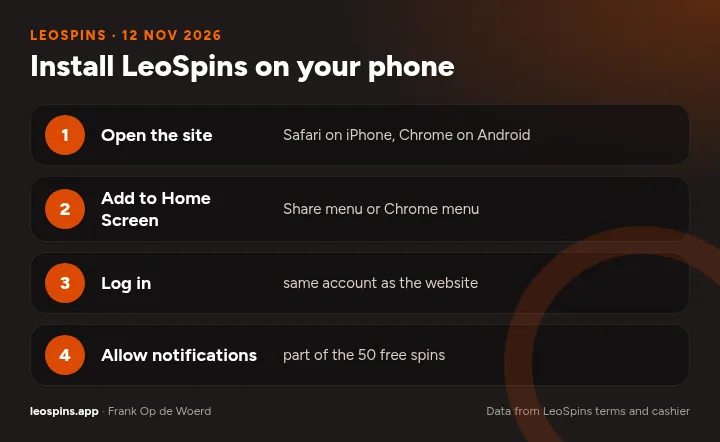
- Open the site Safari on iPhone, Chrome on Android
- Add to Home Screen Share menu or Chrome menu
- Log in same account as the website
- Allow notifications part of the 50 free spins
What does the LeoSpins app look like?
Exactly like the mobile site, minus the browser bar. These are real screens from an iPhone-sized view taken on 12 November 2026.
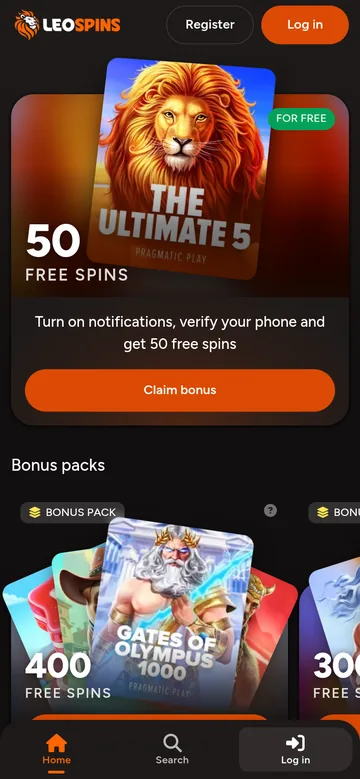
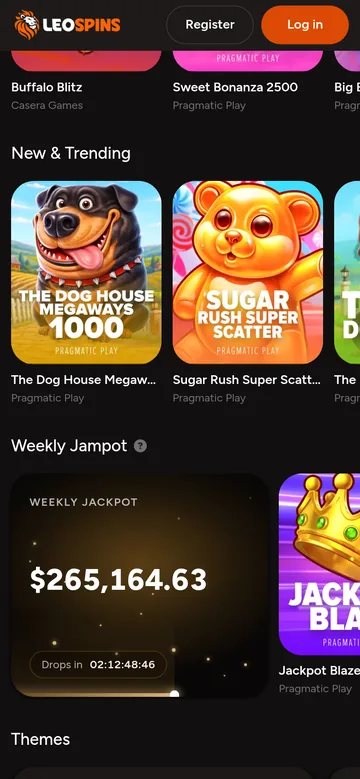
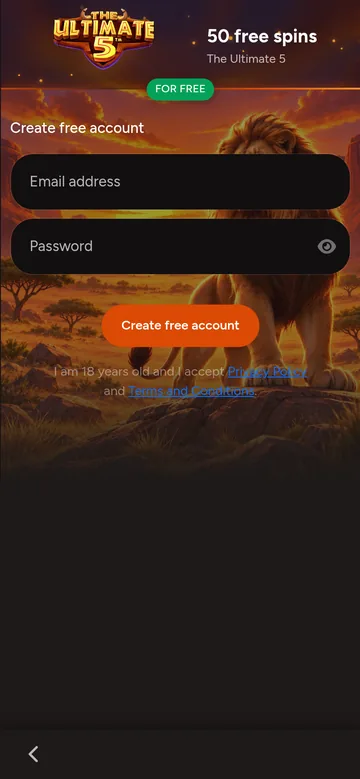
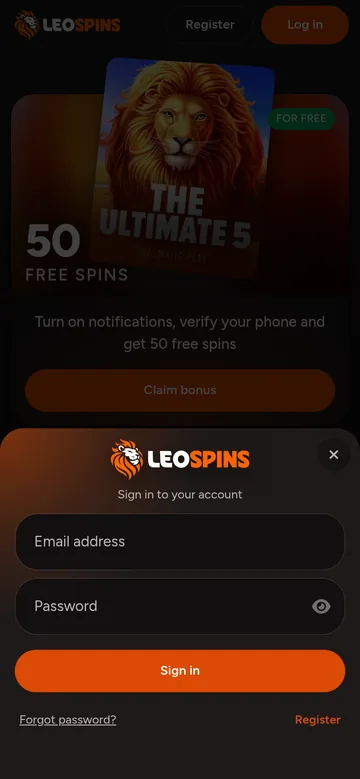
The bottom bar has three buttons when logged out: Home, Search and Log in. Game tiles are big enough to hit with a thumb, and the bonus packs scroll sideways. The only fiddly part is the jackpot row, where the tiles are tall and you scroll a lot.
Is the LeoSpins app better than the browser?
For regular play, yes. For a quick look, the browser is fine.
- Opens straight to the lobby from the icon
- Notifications for bonuses, drop spins and payouts
- Needed on iPhone for the 50 free spins
- Full screen, no address bar
- Nothing to install at all
- Easier on a shared or work phone
- Same games and cashier anyway
No notifications on iPhone, no 25 spins for alerts, log in more often.
Alerts work, the 50 spins arrive, one tap to the lobby.
Can you deposit and withdraw in the app?
Yes, everything in the cashier works the same. Tap Deposit, pick an amount and a method, and the payment page opens in a new window. On iPhone that means a Safari sheet slides up over the app; on Android a Chrome tab opens. Pay there, come back, and LeoSpins shows "We're confirming your payment", which usually clears in a few seconds and at most in about 5 minutes.
Apple Pay and Google Pay are the smoothest on a phone, because your card is already stored. In Australia, PayID is quick too. In Canada, Interac sends you to your banking app and back. Withdrawals sit in the same cashier under the Withdraw tab, with your Withdrawable balance, Bonus balance and Wager progress on top.
Document uploads for KYC are easier in the app than on a laptop, since you can photograph your ID and take the selfie right there. Take the photos in daylight, with no glare on the card, and the KYC goes through faster.
If the payment window does not open, LeoSpins says "This payment method isn't available right now". Allow pop-ups for the site or pick a different method.
What phone do you need for LeoSpins?
Any phone from the last few years. There is no big download, the app is the website running in its own window.
| Item | What works |
|---|---|
| iPhone | Recent iOS with Safari; Home Screen web apps get notifications from iOS 16.4 |
| Android | Recent Chrome, Samsung Internet or Edge |
| Storage | A few MB of cache, no install file |
| Connection | 4G or Wi-Fi; live tables like more bandwidth |
Never install a "LeoSpins APK" from a random site or a Telegram link. LeoSpins does not offer one, and a fake file can steal your login.
Install and claim in one go
How do you install LeoSpins and claim spins?
Start on the right browser. On iPhone that means Safari, because iOS only lets Home Screen web apps opened from Safari send notifications. On Android, Chrome is the easy choice, though Samsung Internet and Edge work too. Open leospins.com and log in, or create an account with your e-mail and a password first.
Add the site to your Home Screen. On iPhone: Share, Add to Home Screen, Add. On Android: tap Install when Chrome offers it, or use the menu and Add to Home screen. A lion icon appears among your apps. From now on, open LeoSpins from that icon, not from the browser.
Inside the app, turn on notifications when LeoSpins asks. If you already said no once, go to your phone settings, find LeoSpins or your browser, allow notifications and tap Try again. The message "Notifications are on" means it worked.
Now confirm your phone number. Type it in, choose Send code by SMS or Call me instead, and enter the code. With both steps done, the Claim bonus button gives you 50 free spins on The Ultimate 5. You can see them under available free spins.
Keep the app. The drop spins, payout updates and jackpot alerts come through those notifications. If they get too much, you can switch off promotional messages in your profile under Notification Preferences and still keep account and payment updates.
- Use Safari on iPhone or Chrome on Android
- Add LeoSpins to the Home Screen
- Open it from the lion icon and log in
- Allow notifications inside the app
- Confirm your phone by SMS or call
- Tap Claim bonus for 50 free spins